 WANTED

Before you start
Tick these as you go. Progress stays in this browser.
Move the money in the right direction
Once the BuckMe account is set up, open the app on the character’s phone. Choose ATM Finder → Set Destination and follow the marker. Use the ATM prompt at the machine (Triangle on PS5, Y on Xbox with default controls).
- Deposit puts cash from your character’s pocket into Checking. If the cash is in the stash at home, collect the amount you intend to deposit first.
- Withdraw takes available Checking funds out as pocket cash. This is useful when a character asks for cash, such as the rent at the Starlet Motel.
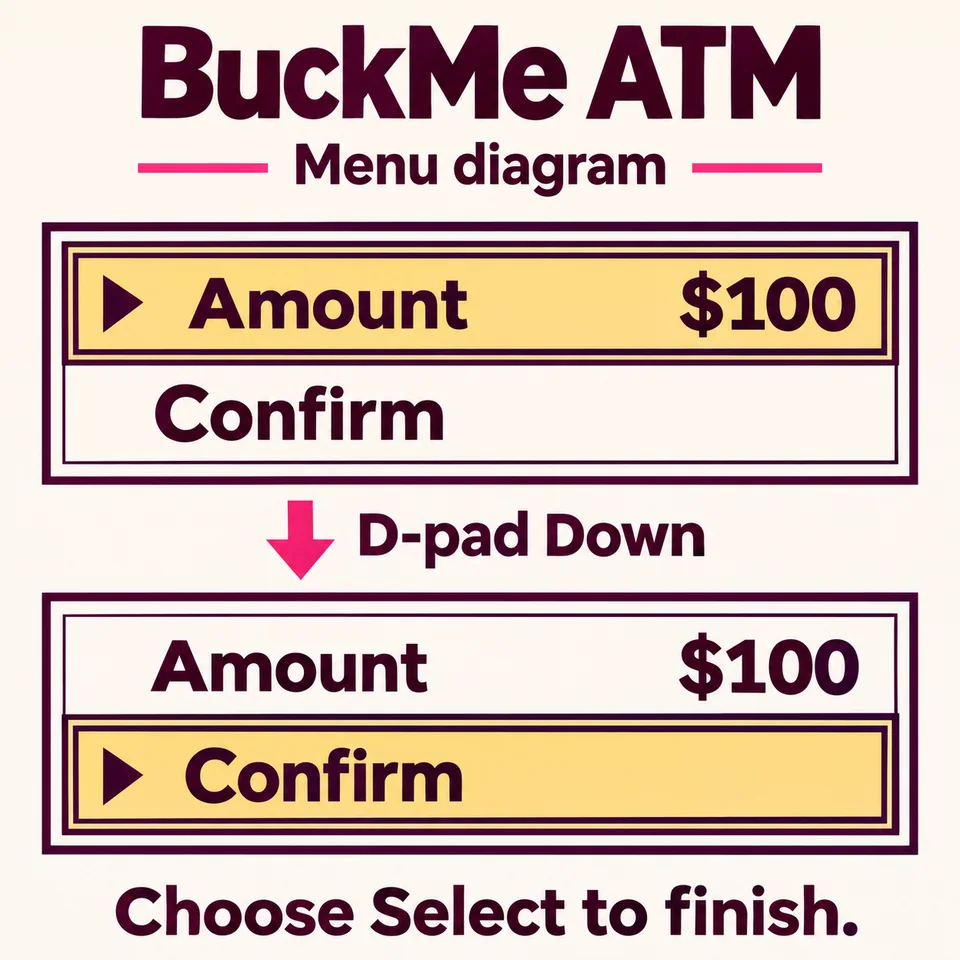
The amount looks right, but Select is still grey
- In Deposit or Withdraw, use Left and Right on the D-pad to adjust the figure between the arrows. Use individual taps as you approach the amount you want.
- Read the figure once more, then press Down until Confirm is highlighted. The number can be correct while the selection is still on the adjustment row.
- Accept the highlighted command with the button shown on your screen. Check your wallet and Checking balance when you exit. For example, depositing $100 should leave $100 less in your pocket and $100 more in Checking.
This extra Down input is the step players identified after reporting that they could set an amount but could not submit it. If only one balance seems to have changed, reopen the ATM’s Transactions view to inspect recent account activity before repeating a transfer.
If a command is grey before you can choose an amount
| What you see | What to check |
|---|---|
| Withdraw is dim on the account menu | Look at Checking. A balance of zero leaves nothing available for withdrawal, even if the Family Savings card shows money. Transfers into Family Savings are permanent. |
| You have pocket cash but Checking is full | Compare the balance with the account limit displayed on your machine. Rockstar says account limits rise through main-story progress. Use your own displayed limit when deciding how much room remains. |
| A job payment is pending | Rockstar says payments held because Checking is full are processed when story progression upgrades the account. The amount picker at the ATM only moves funds already available to you. |
Need cash specifically for a ride? The taxi and transit guide explains which service takes pocket cash and which uses BuckMe.
Does an ATM deposit count toward the $5,000 Family Savings goal?
Check the two cards on the BuckMe home screen. Cash deposited at an ATM lands in Checking, where you can spend it or withdraw it. The first Save for the Future goal tracks the other card, Family Savings. You can check the remaining amount under its balance.
- Open BuckMe → Checking Account → Buck Yourself on the in-game phone. If your money is still in your pocket, deposit the amount you want to transfer at an ATM first.
- Choose how much to move. Read the two balances in the preview and leave enough in Checking for purchases you still want to make. Confirm only the amount you want to commit. Once accepted, the transfer cannot be reversed in the app.
- After Bucking Complete, return to the two account cards. For example, a first contribution of $100 leaves $4,900 to reach the initial $5,000 goal. The BuckMe figure on the HUD shows Checking, so it can drop even though the contribution is visible in Family Savings.
About to finish Chapter 1? A documented playthrough shows a $2,000 contribution still on the savings goal in Chapter 2. A partial contribution can carry over, but it stays in savings and cannot pay for a taxi or motel rent. If you’re deciding when to take Mattia’s offer, see the Chapter 1 checklist.
Sources & checks
Reviewed November 27, 2026. Written from the sources below; not an independent in-game playtest. Platform, chapter and reported limitations are kept explicit.
- Rockstar Support — full Checking accounts, upgrades and pending payments
- GTA Playbook — PS5 ATM screens, separate balances and zero-balance Withdraw
- AllThings.How — withdrawal screens, wallet change, rent prompt and transaction history
- Game in the Moment — first-hand deposit and Family Savings transfer warning
- Player thread — amount changes but Select stays grey; players explain the Down input
- How to Video Game — PS5 transfer preview, confirmation and before-and-after balances
- AllThings.How — in-game savings goal compared across the Chapter 1 transition
- GTABase — Buck Me walkthrough and first savings goal